


Connect SePay to confirm bank-transfer deposits automatically
HostBooking · · 阅读约 6 分钟
Connecting SePay lets HostBooking see a guest's deposit arrive without you opening your banking app. You link your bank account to SePay, add one webhook that points to HostBooking, and use the same key on both sides. After that, a transfer carrying the booking code and the right amount confirms the booking on its own, at any hour.
What you need
- A bank account in your name or your household business's name: the one guests pay deposits into.
- A SePay account at my.sepay.vn. The free plan is enough to start; each plan's monthly transaction allowance is on SePay's pricing page.
- Brand management rights on HostBooking (the owner has them).
The whole setup takes about 10 minutes. A computer is easier, since you copy things between two pages.
Step 1: Link your bank account to SePay
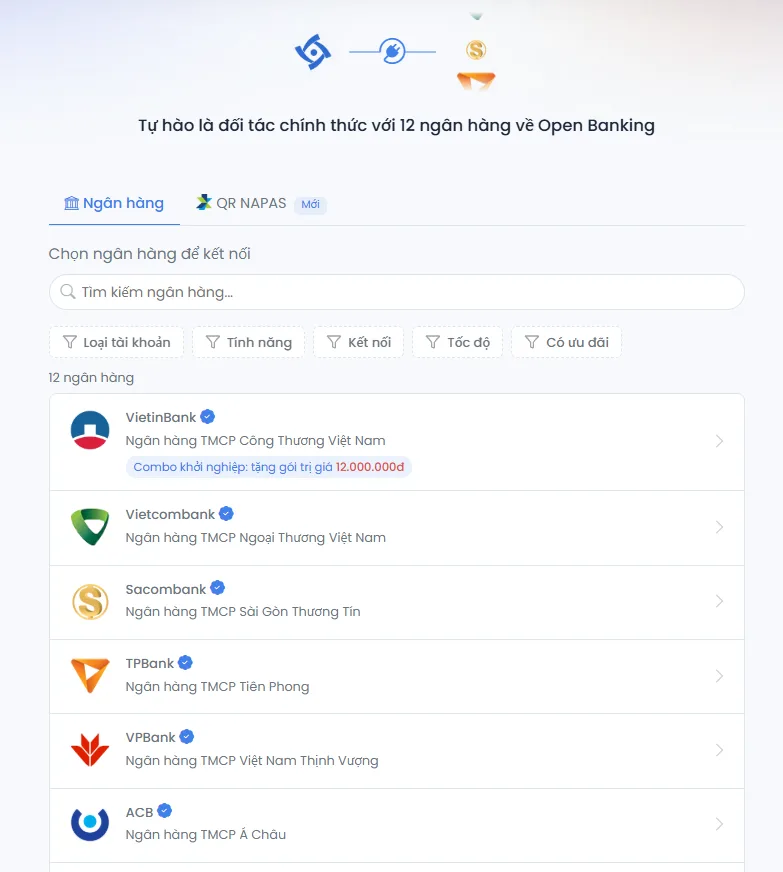
Sign in to SePay, open Ngân hàng (Bank accounts) and press Kết nối mới (Connect new). Pick your bank and follow its verification steps.
 点击查看
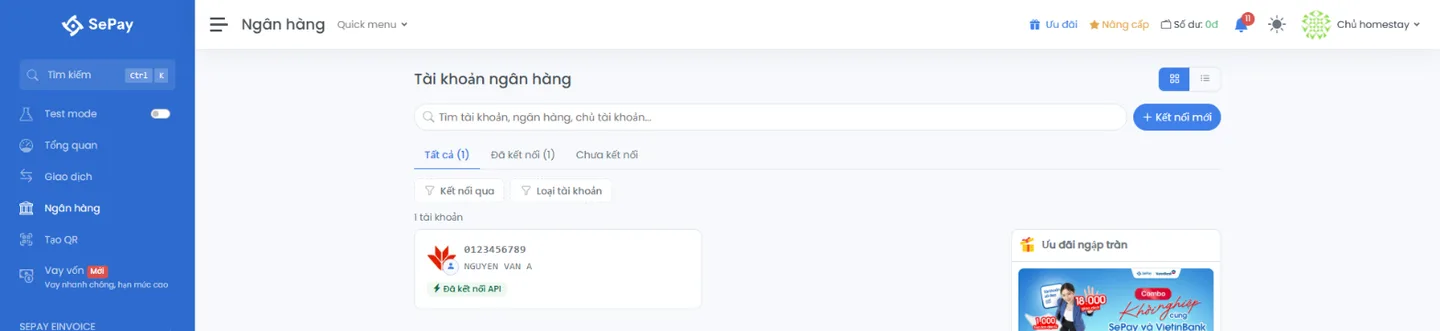
When it is done, the account shows in the list labelled Đã kết nối API (connected by API).
 点击查看
Step 2: Turn on automatic confirmation in HostBooking and make a key
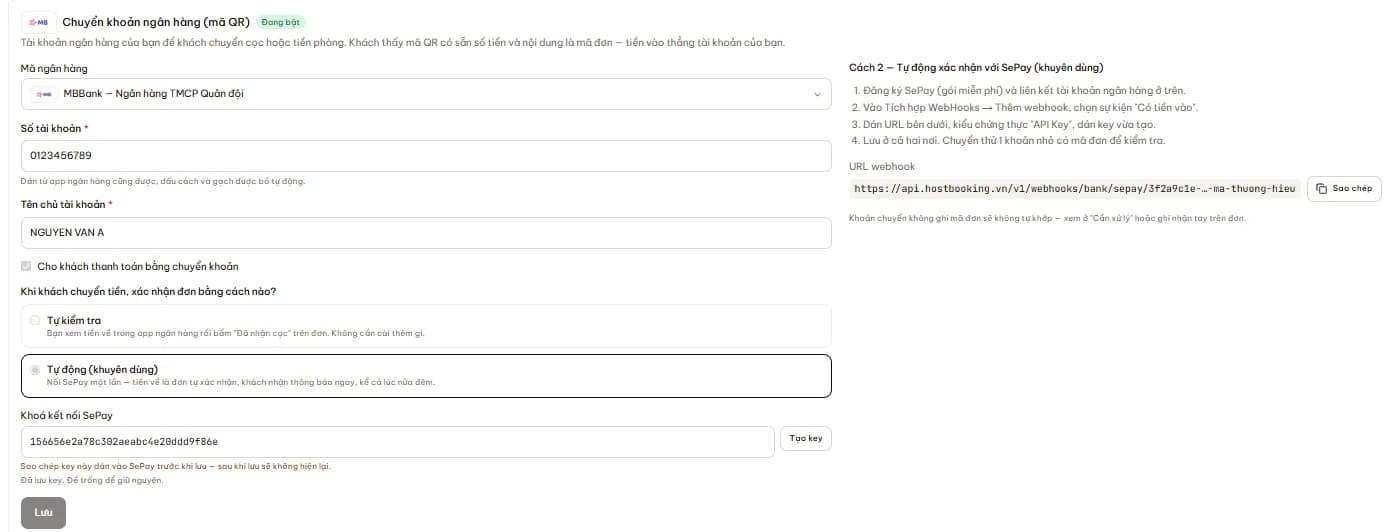
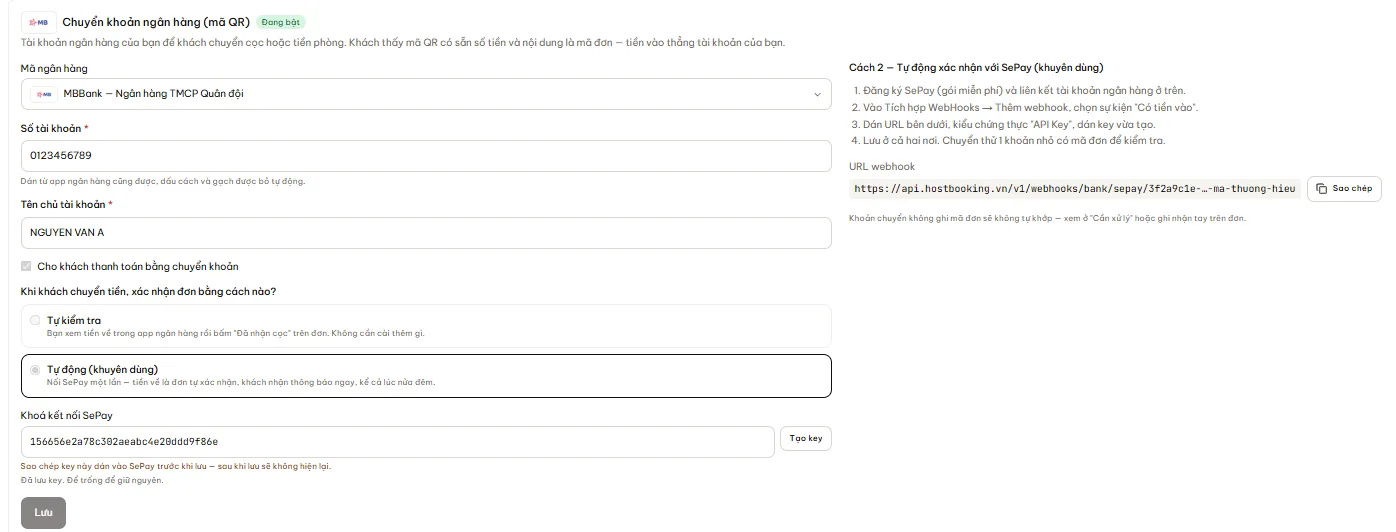
In the HostBooking console, go to Payments → Settings and open the Bank transfer (QR code) card.
- Choose the bank and enter the account number and holder name, exactly as the account linked in step 1.
- Under "When a guest transfers, how is the booking confirmed?", choose Automatically (recommended).
- Press Generate key and copy the key somewhere for a moment: once saved, it is not shown again.
- Press Copy next to Webhook URL on the right.
 点击查看
Do not press Save yet. Leave this page open, do step 3 in SePay, then come back.
Step 3: Add the webhook in SePay
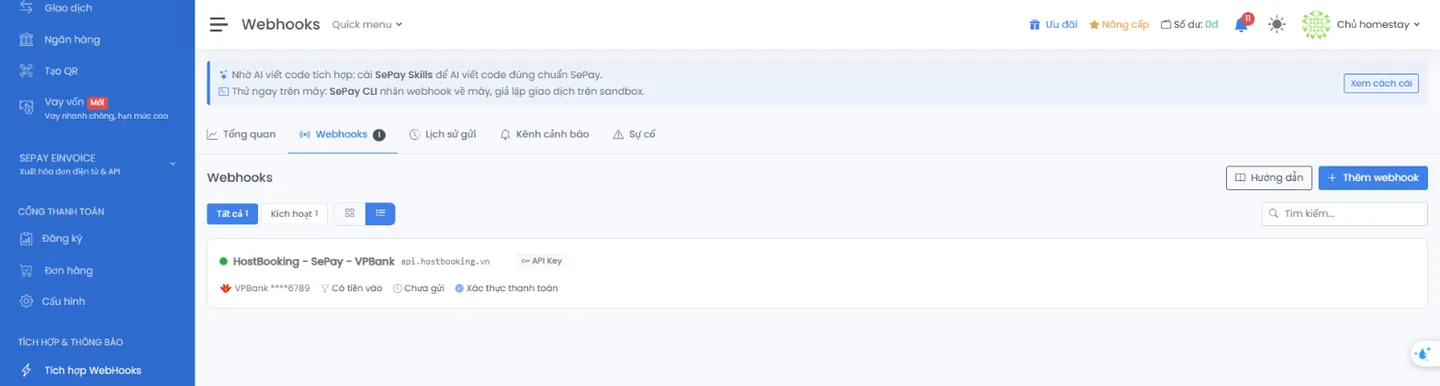
In SePay, open Tích hợp WebHooks (Webhooks) and press Thêm webhook (Add webhook).
 点击查看
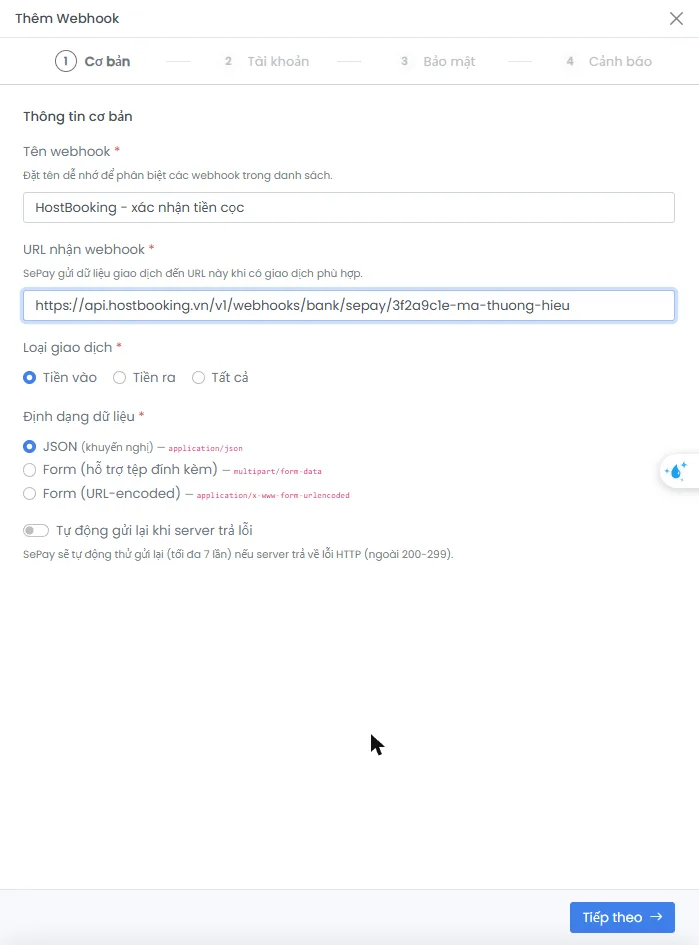
On the Basic tab:
- Webhook name: anything you will recognise, such as "HostBooking - deposits".
- Webhook URL: paste the URL copied in step 2.
- Transaction type: Money in.
- Data format: leave it on JSON.
 点击查看
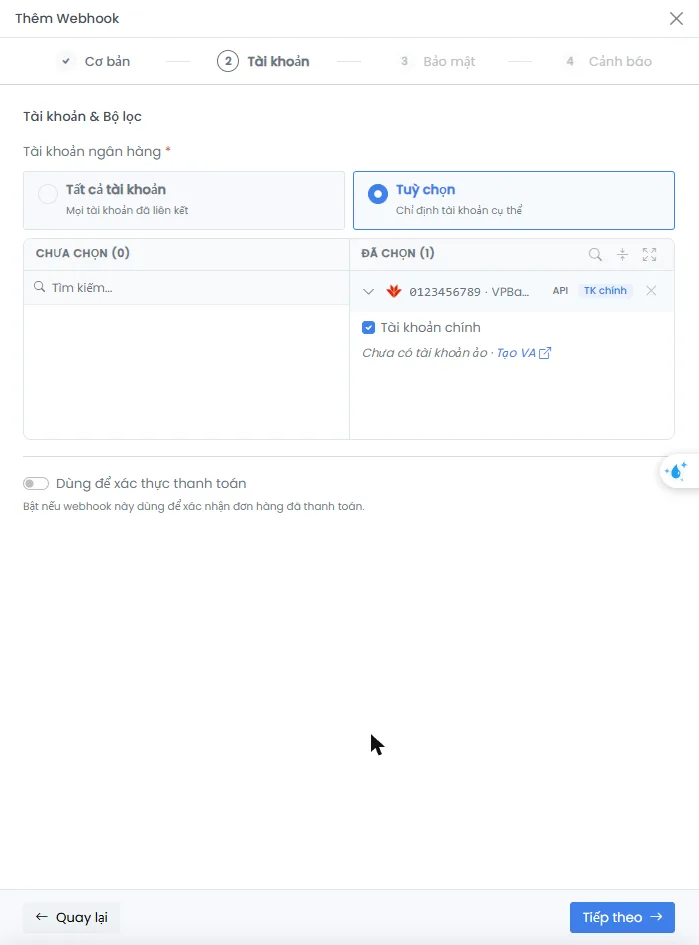
Press Next. On the Account tab, choose Custom and tick the account guests pay into. If your SePay has only one account, "All accounts" works too.
 点击查看
Step 4: Paste the key into SePay
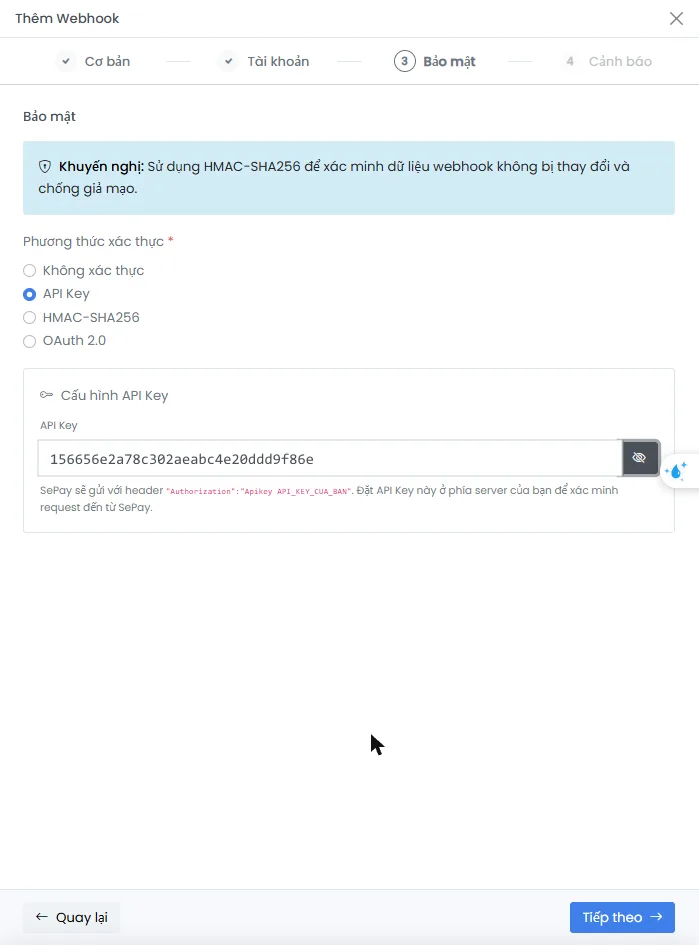
Press Next to the Security tab. Under Authentication method, choose API Key and paste the key from step 2. HostBooking only accepts calls carrying this key, so nobody else can fake a payment arriving.
 点击查看
Press Next to the Alerts tab. Turning on the alert for repeated webhook errors is worth it: SePay tells you if the connection breaks. Then press Add.
Step 5: Save in HostBooking and send a test transfer
Go back to the HostBooking page from step 2 and press Save. The card then says "A key is saved".
To be sure it works, make a test booking on your booking site and transfer a small deposit with the booking code as the message (scanning the QR on the booking page fills both in). Within seconds the booking turns confirmed and the payment appears under Payments → Transactions.
What HostBooking does when money arrives
| The transfer | HostBooking |
|---|---|
| Carries a booking code, full deposit | Records the payment, confirms the booking, tells the guest and you |
| Carries a booking code, too little | Records what came, flags the booking as short for you, does not confirm it |
| Carries the code of a cancelled booking | Attaches the money to that booking and flags it for a refund, so it is not lost |
| Carries no booking code | Lists it under "Needs attention" for you to match by hand |
The QR on the booking page already holds the amount and the code, so most guests pay correctly first time. Mismatches usually come from a guest typing the message themselves. To hear payments arrive, turn on the Payment speaker on the Payments page of the computer at your front desk.
Common problems
- A test transfer did not confirm the booking: check the message carried the booking code and the amount covered the deposit. SePay's Send history tab on the Webhooks page shows what HostBooking answered.
- SePay reports error 401: the key in SePay differs from the one saved in HostBooking. Generate a new key in HostBooking, paste it into SePay and save both.
- Changing bank account: link the new account to SePay, update the account number in HostBooking, then pick the new account in the webhook.
For the whole QR deposit flow, see Taking homestay deposits by QR transfer, or the VietQR payments feature page.
Sources and date checked
The screens in this guide were captured in SePay and HostBooking on 26/11/2026; the account numbers and names shown are sample data. SePay's screens change from time to time, but its section names (Bank accounts, Webhooks, API Key) tend to stay. Plans and limits: sepay.vn.
常见问题
Does connecting SePay cost anything?
SePay has a free plan with a monthly transaction limit; a busy homestay may need one of SePay's paid plans. HostBooking charges nothing extra for the connection.
Does the deposit pass through HostBooking?
No. Guests pay straight into your bank account. SePay only tells HostBooking that money arrived, so the booking can be confirmed.
Can I take transfer deposits without SePay?
Yes. Choose "Check it yourself": guests still scan the QR, you see the money in your banking app and press "Deposit received" on the booking.
Can one SePay account serve several homestays?
Yes. If each homestay is its own brand on HostBooking, add one webhook per brand, each with that brand's URL and key.