

Import bookings from Excel, Google Sheets and Google Calendar
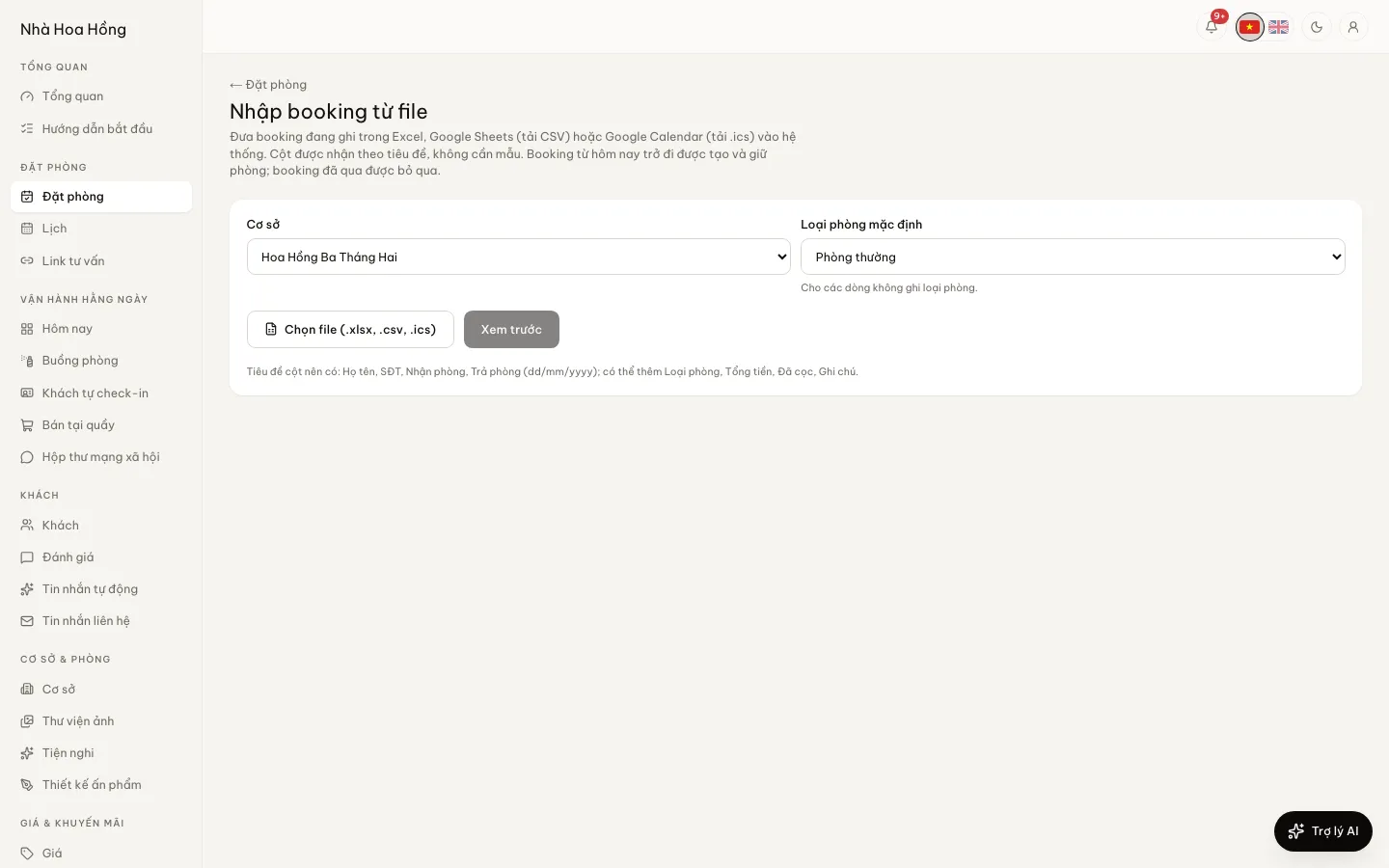
Keeping bookings in a spreadsheet or a Google calendar? Upload the file, check the preview, click import. Upcoming bookings land on the calendar and hold their rooms.
Included from the Free plan.
 Tap to view
What it does
Import from files
Three file types
Excel (.xlsx), CSV downloaded from Google Sheets, and .ics downloaded from Google Calendar.
No template needed
Columns are matched by their Vietnamese or English headings: name, phone, check-in, check-out, room type, total, deposit paid, note. Dates as dd/mm/yyyy; amounts like "1,5tr" or "500k" work.
Row-by-row preview
Each row says whether it will be imported or skipped, and why: in the past, missing dates, unknown room type, room already taken.
Same path as a real booking
Imported bookings hold their rooms, are confirmed and record the deposit already paid, just like bookings entered by hand.
Undo the whole batch
Imported the wrong file? Click Undo this import and every booking from it is cancelled at once.
How it works
Up and running in a few steps
- 1
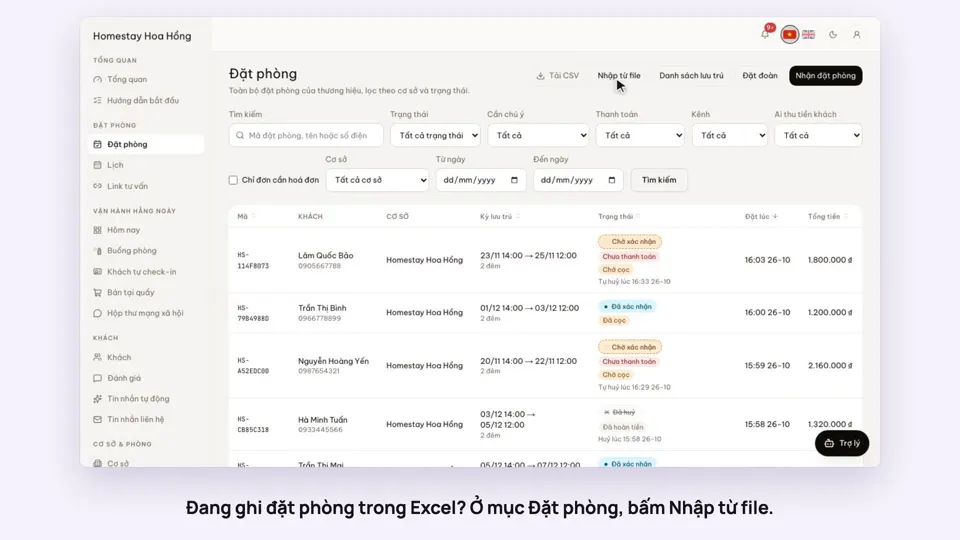
Go to Bookings › Import from file, pick a property and a default room type.
- 2
Choose an .xlsx, .csv or .ics file.
- 3
Check the rows to be imported and the rows skipped.
- 4
Click the import button under the preview. The bookings appear on the booking calendar.
Only bookings from today onwards are imported; past ones are skipped. Importing properties, room types and rooms from the Excel template is on every plan, Free included.
How-to videos
Questions
Common questions
My file has no room type column.
Pick a default room type before importing. Rows with no room type use it.
What if two bookings in the file need the same room?
The later one is not imported and is marked "Room taken" in the preview, so you can sort it out.
I have several properties. One import for all?
Bookings import one property at a time. To create many properties and room types at once, use the Excel template on the Properties page, on every plan.