

A booking calendar for homestays, villas and small hotels
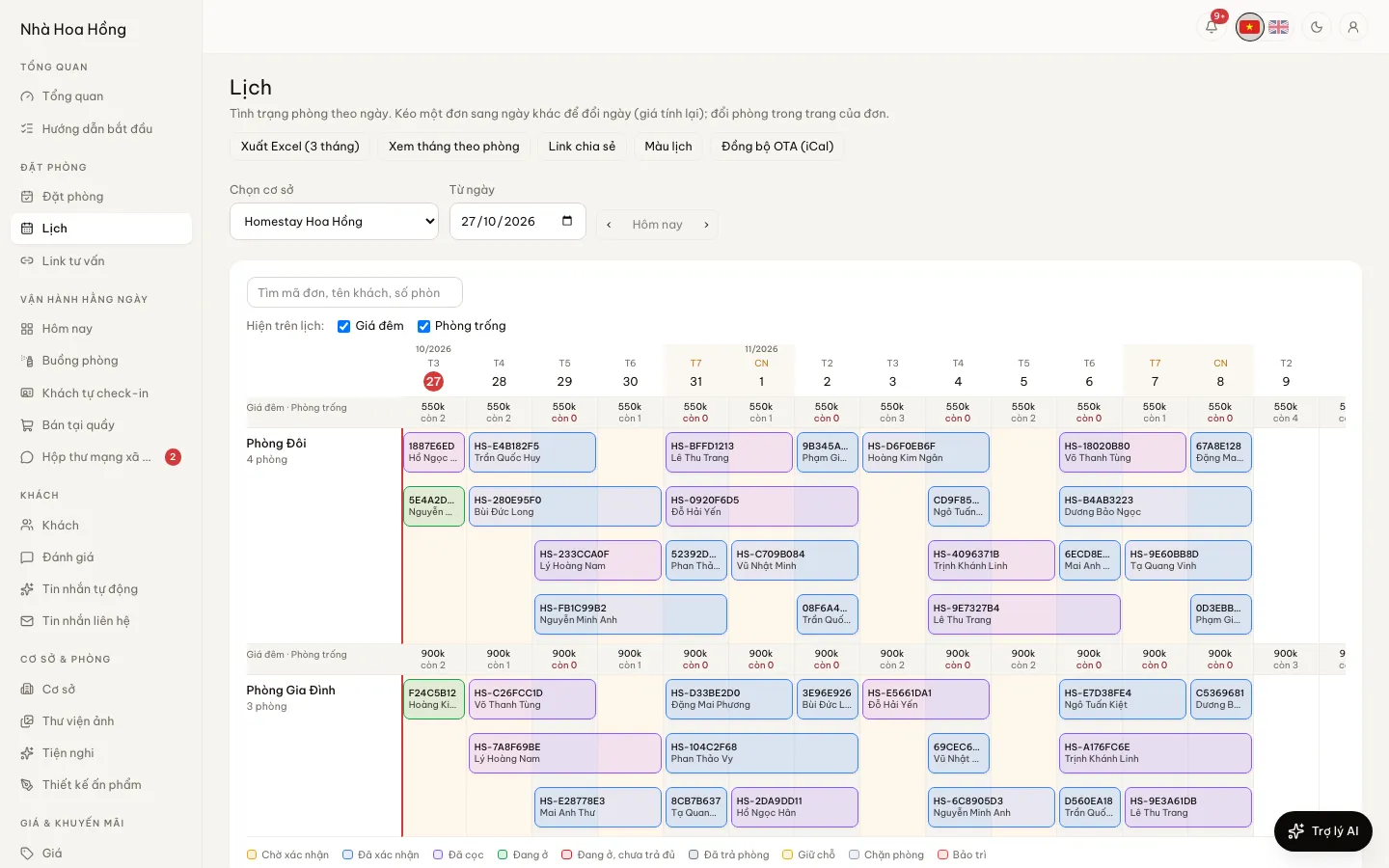
One row per room, one column per day. You see at a glance which rooms are free and which are taken, and you move a guest to another room with one drag.
Included from the Free plan.
 Tap to view
What it does
Booking calendar
Range view or day view
The range view suits rooms sold by the night. The day view splits into hours for hourly rooms.
Drag to change room or dates
Drag a booking to another room or another day. If the room was just taken, the calendar says so and reloads instead of double-booking.
Blocks and maintenance
Block one room or a whole room type for a range of days or hours. Maintenance shows in its own colour so the team knows.
Holds and overbooking stand out
Bookings waiting for a deposit, bookings without a room and oversold nights each have their own colour.
Export to Excel
One button exports three months: a sheet per month, a row per room, a cell per night with the booking code and guest name, coloured by status.
Nightly price and rooms left
Each room type has a line of nightly prices and rooms left for every day, with closed days marked. Hover a booking for its times, source, guests, balance and note. Each person can show or hide these lines.
Colours by status, your own colours
Booking bars are coloured by status, with extra colours for guests checked in but not paid and bookings with a deposit paid. Each brand can change the colours and status names on a settings page.
Find a booking on the calendar
Type a booking code, guest name, phone number or room number into the search box. The calendar scrolls to the booking and highlights it.
Share a read-only calendar
Make a view-only link for an owner, a partner or outside staff: choose which room types it shows, whether guest names appear, and when it expires. It opens in a browser with no login, and you can revoke it at any time.
One room by the month, filter by area
See a single room across a whole month, handy for long-stay apartments. If a property is split into areas such as "Block A" or "Garden house", filter the calendar to one area.
How it works
Up and running in a few steps
- 1
Open Calendar, pick a property and a start date.
- 2
Record a guest who called or messaged you from the Bookings page. The booking appears on the calendar at once.
- 3
Drag a booking to change its room, or select a range to block it or log maintenance.
- 4
Use Export to Excel (3 months) when you need to share the schedule.
How-to videos
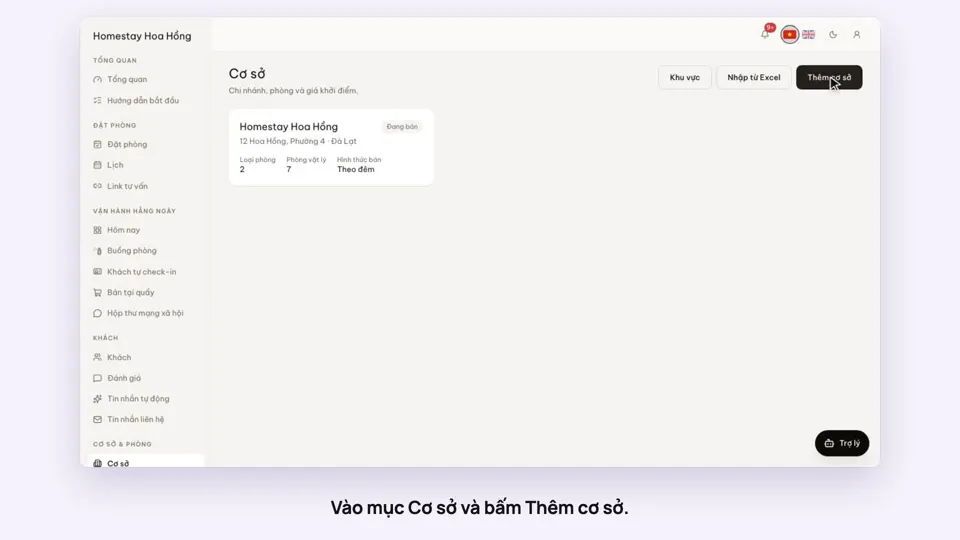 0:39Add a place, its room types and roomsGetting started
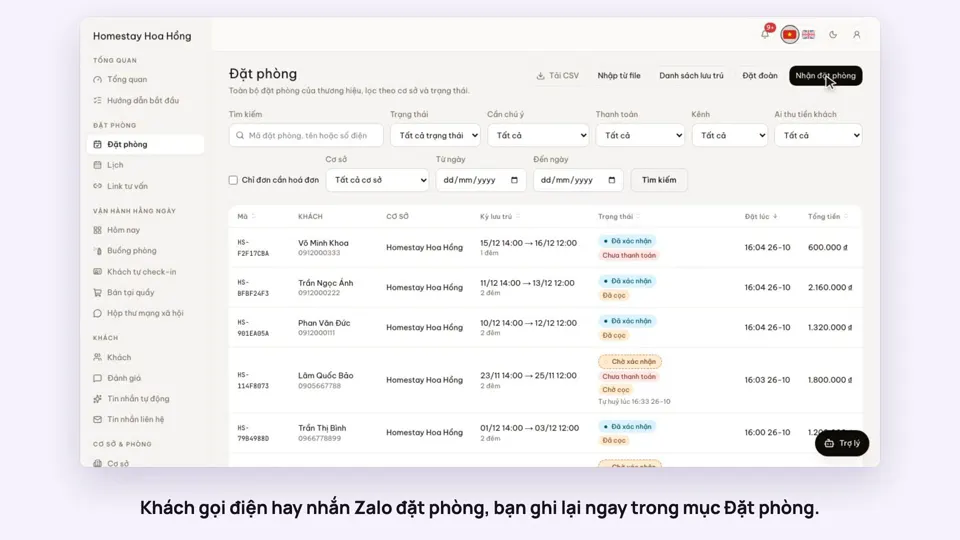 0:41Take a booking from a phone call or a Zalo messageBookings
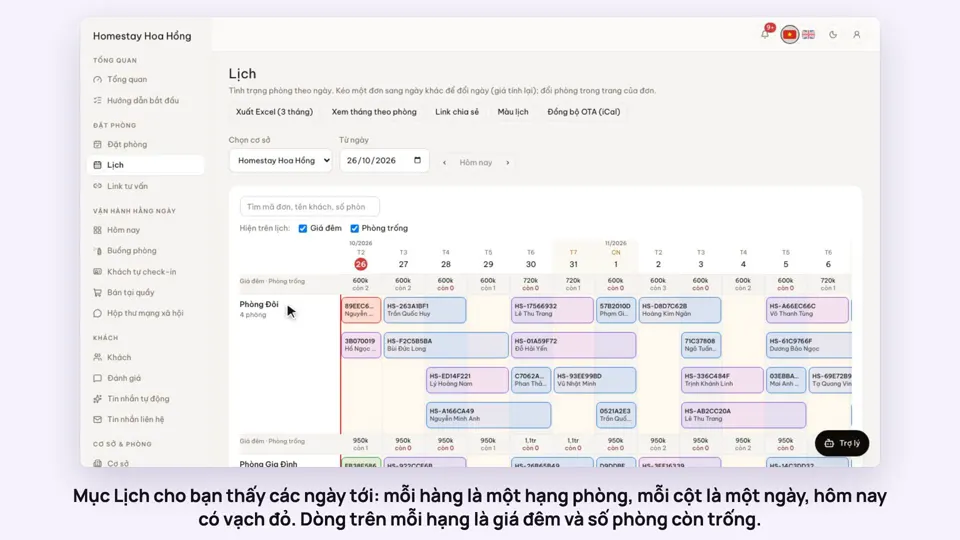 0:54Read the room calendar by day, week and rangeBookings
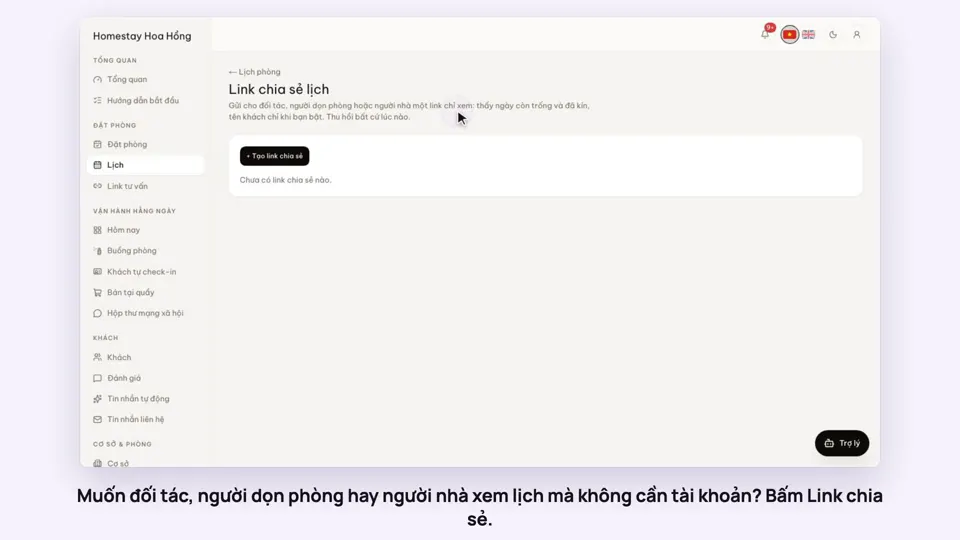 0:43Share a view-only calendar, recolour it, see a room’s monthToday & housekeeping
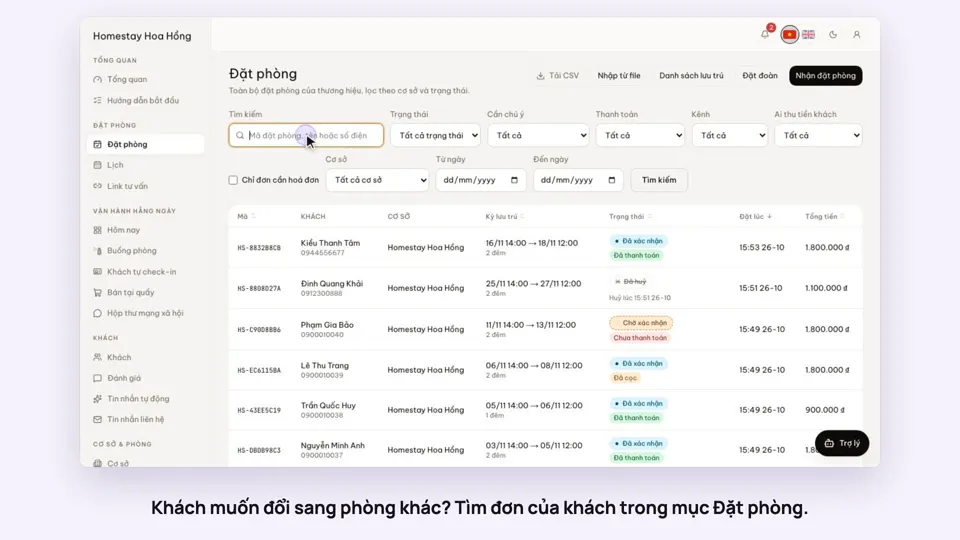 0:37Move a guest to another roomBookings
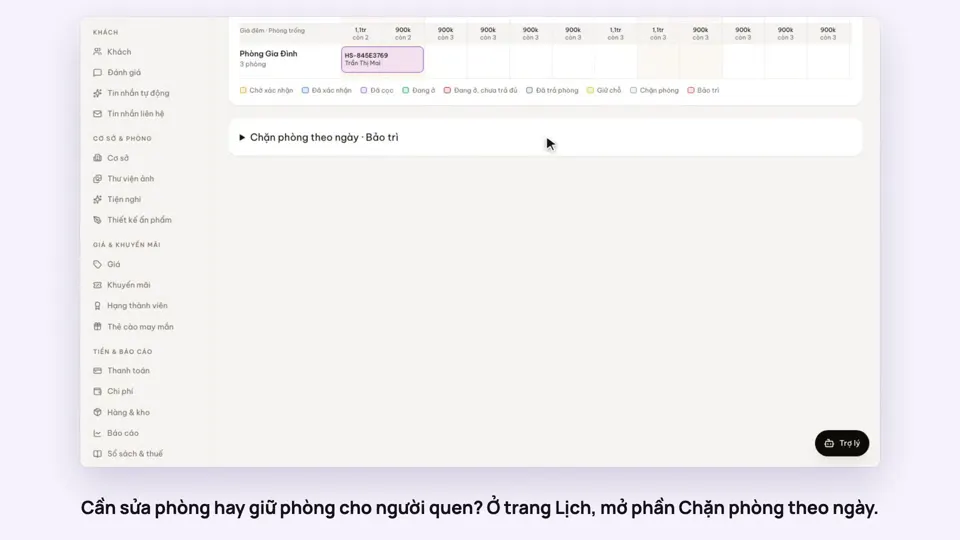 0:31Block a room for repairs or a friendBookingsToday & housekeeping
Questions
Common questions
Do bookings I enter by hand block the website?
Yes. Manual bookings, website bookings and blocked dates share one calendar, so a full room cannot be booked online.
I also sell on Airbnb and Booking.com. What then?
Connect them by iCal on the OTA sync page. Nights booked there are blocked on your calendar automatically.
Can my staff see the calendar?
Yes, if their role has permission to view bookings. You set permissions per role on the Roles & permissions page.
Can someone with a shared calendar link change anything?
No. The link is view-only. They cannot change bookings, they see no money, and guest names show only if you turned that on when making the link.