

Smart locks: a door code for each stay
No keys to hand over and no waiting for guests to open the door. Codes are made from the booking and shown in the guest’s arrival instructions.
Included from the Professional plan.
 Tap to view
What it does
Smart locks
Connect TTLock
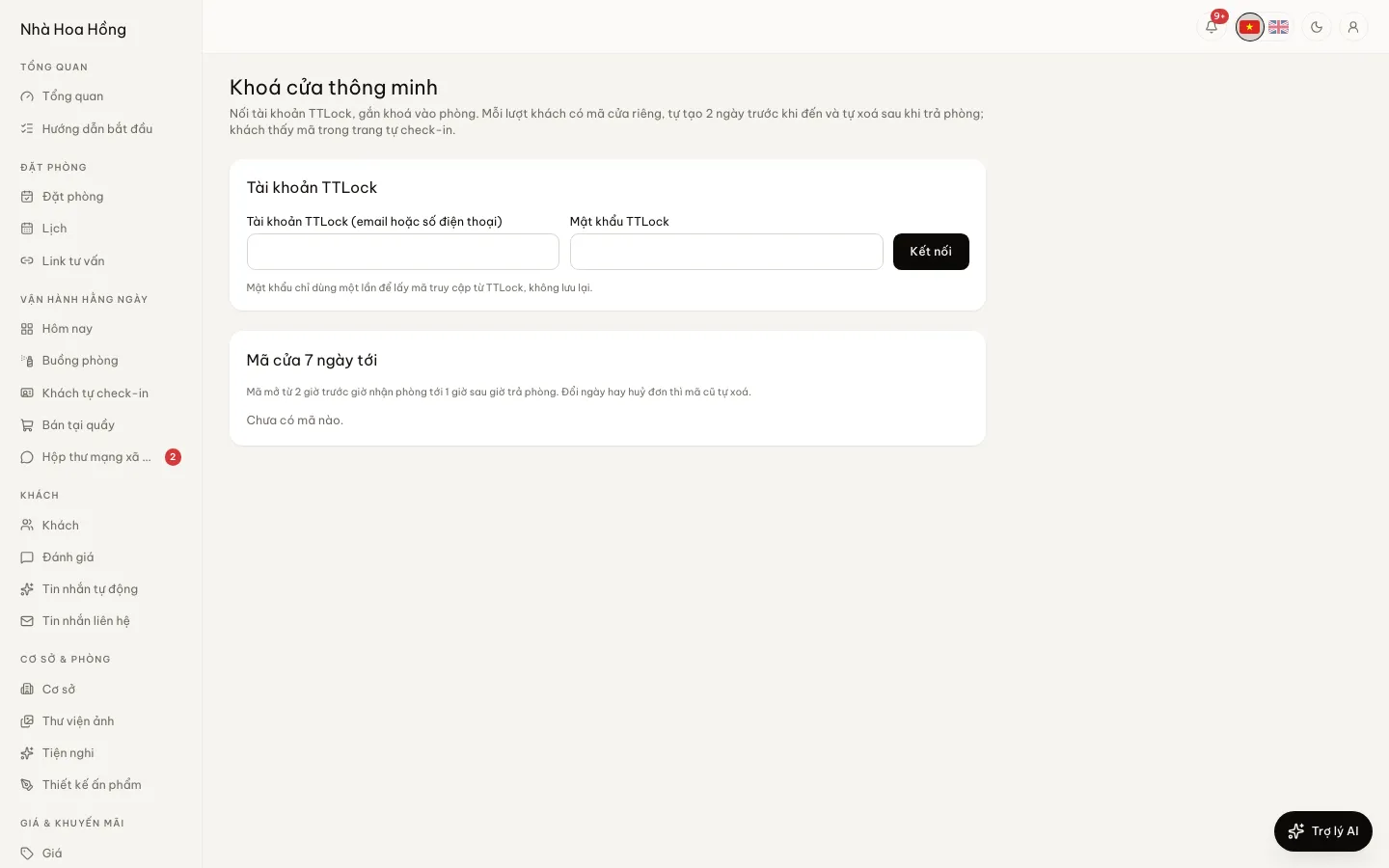
Sign in to your TTLock account once and your locks appear, ready to assign to rooms.
A code for the stay only
Each stay gets a 6-digit code valid from just before check-in to just after check-out, created two days ahead.
Removed when the booking changes
A cancellation, new dates, a room move or check-out removes the old code from the lock; if the lock cannot be reached it is kept and retried.
Shown only to the right guest
The code appears on the guest’s self check-in page from the arrival day, after approval, for the booking’s own room.
How it works
Up and running in a few steps
- 1
Open Smart locks and sign in to TTLock.
- 2
Assign each lock to its room.
- 3
Switch on Guest self check-in for the property so guests receive their code.
- 4
From then on every booking with a room gets a door code; the desk sees live codes under Smart locks.
Needs TTLock keypad locks with a gateway, so codes can be set remotely. Pro and above include any number of locks; on a lower plan, buy the Smart locks add-on, billed per lock.
Questions
Common questions
What happens to live codes if TTLock is disconnected?
Every live code is removed from the locks first; if that is not possible the disconnect is refused, so no stray code is left on a door.
Can staff see door codes?
Staff who may check guests in see the live codes of their own branches to help; others do not.
What about a booking without a room yet?
Codes are only made once the booking has a specific room with a lock.