

Staff roles and account security
The front desk does not need the profit and loss, the cleaner does not need guests’ phone numbers. Everyone sees and does their own part, and console accounts get one more lock.
Included from the Free plan.
 Tap to view
What it does
Roles and security
Roles from ready templates
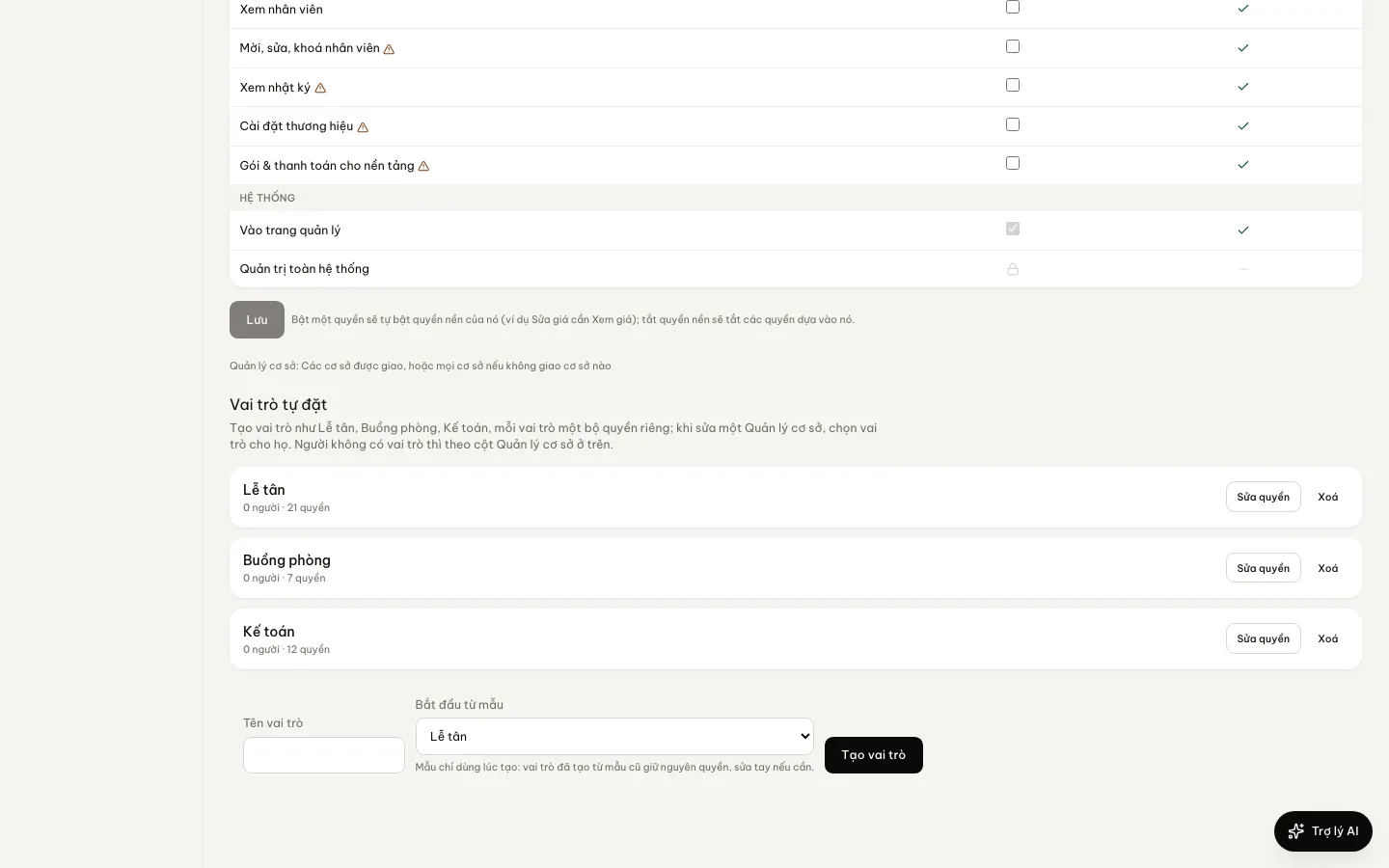
On Roles & permissions, create a role from the Front desk, Housekeeping or Accountant template, or from blank, then switch each permission on or off. Name it the way your team does.
A role for each person
When you edit a staff member on the Users page, pick their role. Their own extra or removed permissions still apply on top of it.
Changes apply at once
Edit a role and everyone holding it works with the new permissions straight away, without signing out. A role someone still holds cannot be deleted.
Nobody grants more than they have
A manager trusted with adding staff can only hand out permissions they hold themselves. Role changes go into the Audit log.
Two-step sign-in
Under Account security in the account menu, scan a QR code with Google Authenticator or Microsoft Authenticator, or choose Get codes by email. From then on, signing in with a password or with Google also asks for a 6-digit code.
Required for the whole brand
The owner chooses who must have it on: nobody, owners only, or all staff. Anyone who has not turned it on reaches only Account security until they do, and cannot turn it off while it is required.
Recovery codes and trusted devices
Turning it on gives you 10 recovery codes, each usable once if you lose your phone. Choose to trust a device and it will not ask for a code there for 30 days.
How it works
Up and running in a few steps
- 1
Go to Users › Roles & permissions, pick a template, name the role and click Create role.
- 2
Click Edit permissions to switch each of the role’s permissions on or off, and save.
- 3
On the Users page, edit each staff member and choose their Role.
- 4
Each person opens Account security, clicks Turn on two-step verification (or Get codes by email), enters the 6 digits and saves the recovery codes. The owner chooses who must turn it on, on the same page.
Your own roles are for staff accounts (property managers). The brand owner always has every permission. Each person turns on two-step sign-in, or the owner requires it.
Questions
Common questions
What can a staff member without a role do?
They follow the brand’s general property manager set, which the owner adjusts on the same Roles & permissions page.
What if I lose the phone with the authenticator app?
Enter one of the recovery codes you saved instead of the 6-digit code. Each works once.
Can someone guess the 6-digit code?
Each code works once, and wrong attempts are limited per account, so guessing in bulk does not work.