

Housekeeping: cleaning, room prep and supplies
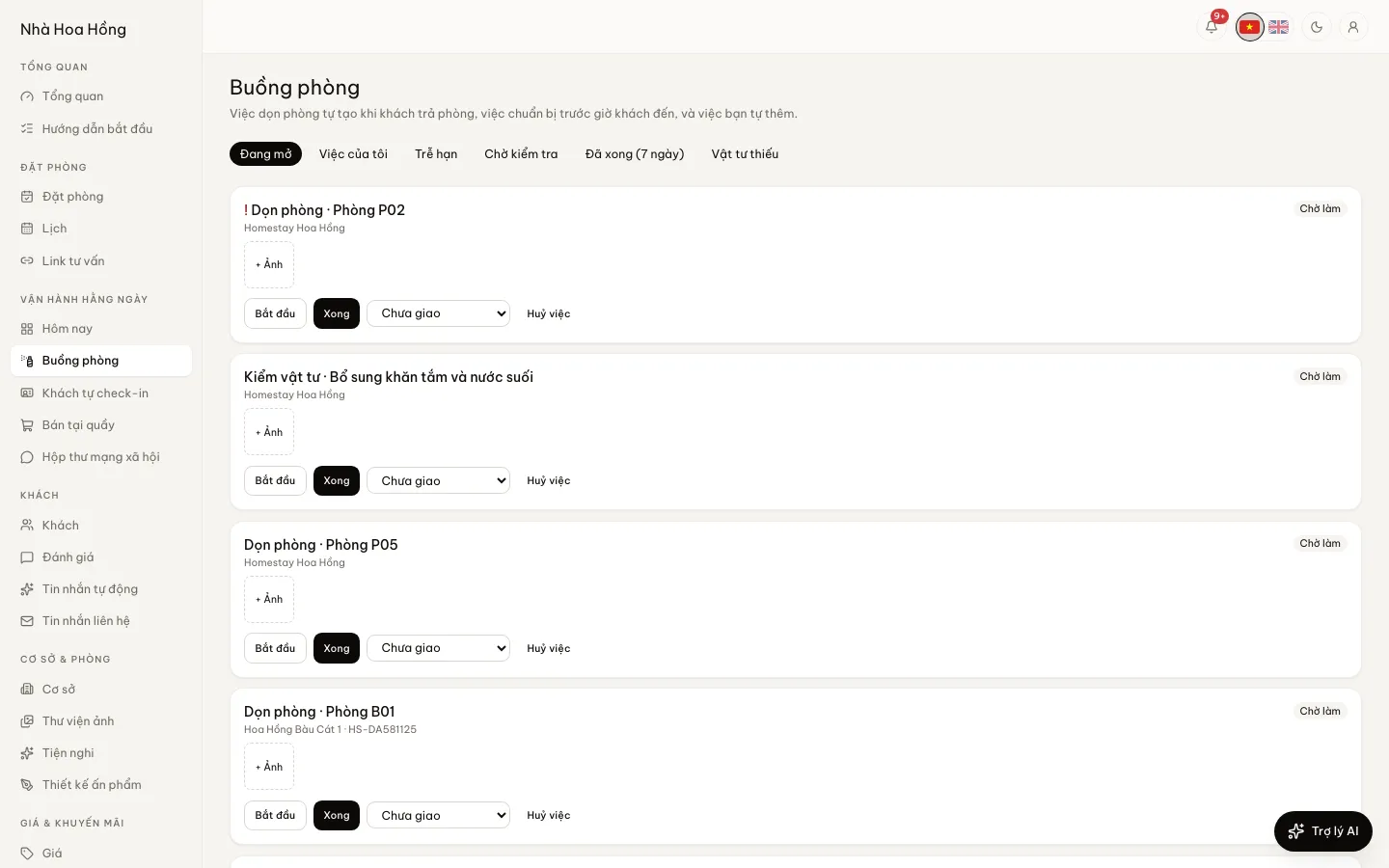
When the desk checks a guest out, a cleaning task is created and the room turns dirty. Cleaners open their phone and see their tasks.
Included from the Free plan.
 Tap to view
What it does
Housekeeping
Cleaning tasks on check-out
Every check-out creates a Clean task, with the room type’s list of included items to tick off as present or missing.
Prepare before arrival
Turn on an option to create a Prepare room task a set number of minutes before check-in.
Your own tasks, assigned
Add maintenance, supply checks or guest-reported issues. Assign them to someone, set a due time, mark them urgent.
Overdue and missing supplies
Separate lists for overdue tasks, my tasks, tasks done in the last 7 days and supplies that need restocking.
Wall board
A secret link to open on a TV or tablet in the staff room. No login, no guest details, and you can replace the link at any time.
Recurring tasks
Templates for tasks that repeat daily, weekly or monthly — watering, fire-extinguisher checks, deep cleans — and the task appears on its day.
Inspection before a room is clean
Finished work can go to Awaiting inspection. The inspector passes it, or sends it back with a Needs redoing note. The room turns Clean only once it passes; you choose which kinds of task need this step.
Checklists and photos
Staff tick the checklist as they work, and take up to 6 photos per task on their phone.
Rules that create tasks from bookings
Set rules to create a task on a new booking, on confirmation, on check-in, on check-out, a number of hours before arrival, or at check-out time. Filter them by booking source, channel and room type.
One clean per dorm room
For rooms sold by the bed, several beds checking out create a single cleaning task for the room. Once it is done, every bed in the room is clean.
How it works
Up and running in a few steps
- 1
Add included items to each room type to get a checklist.
- 2
Under Housekeeping › Settings, turn on room prep if you want it and copy the wall board link.
- 3
The desk taps Check out on the Today board. The cleaning task appears for staff.
- 4
Staff tap Start, tick each item, then Done. The room goes back to Clean.
- 5
If inspection is on, finished tasks wait under Awaiting inspection until the inspector passes them.
How-to videos
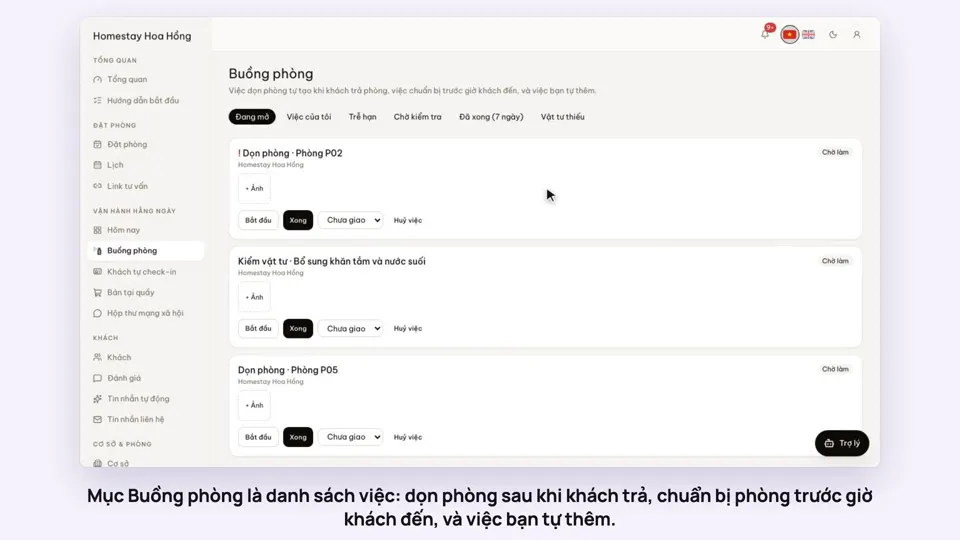 0:39Give housekeeping a room to cleanToday & housekeeping
 0:28Housekeepers take and finish tasks on their phoneToday & housekeeping
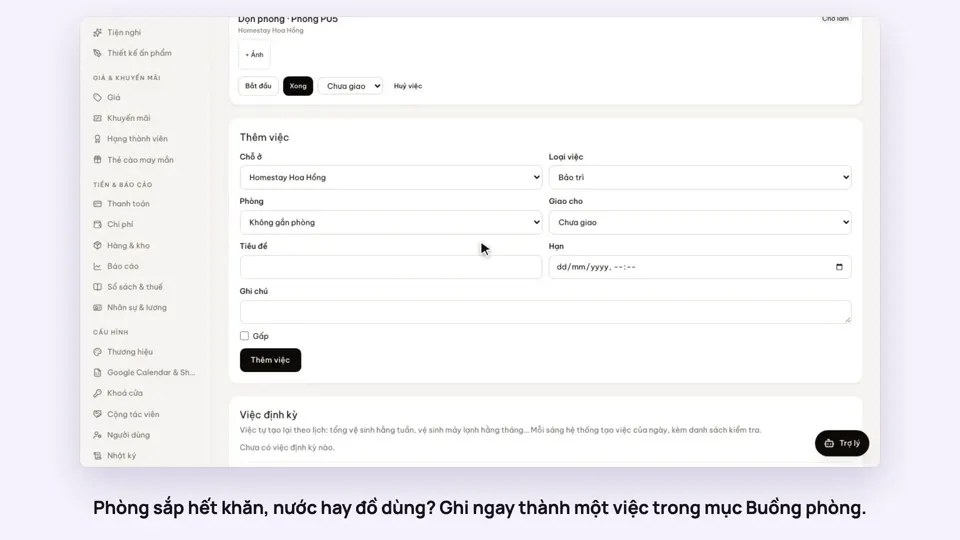 0:30Note supplies to restockToday & housekeeping
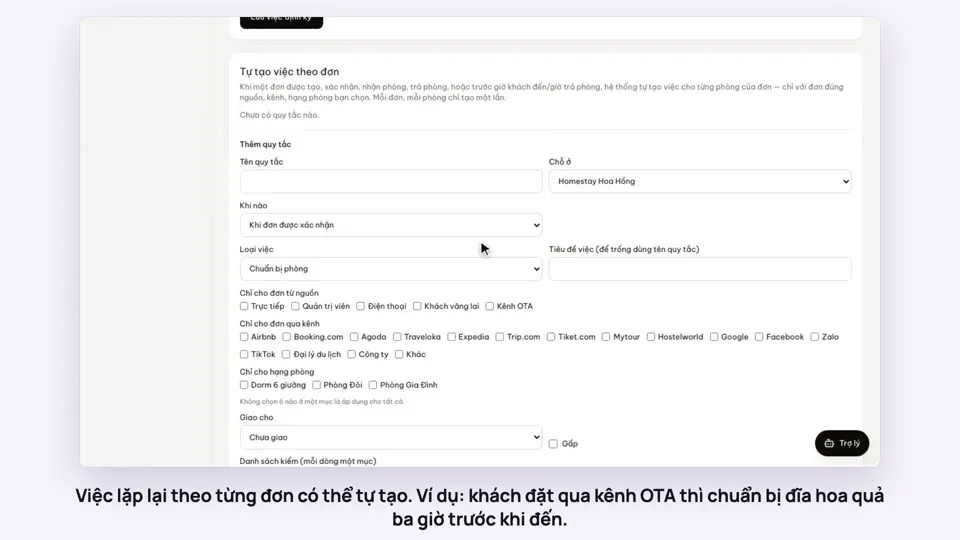 0:36Make housekeeping tasks from bookings automaticallyToday & housekeeping
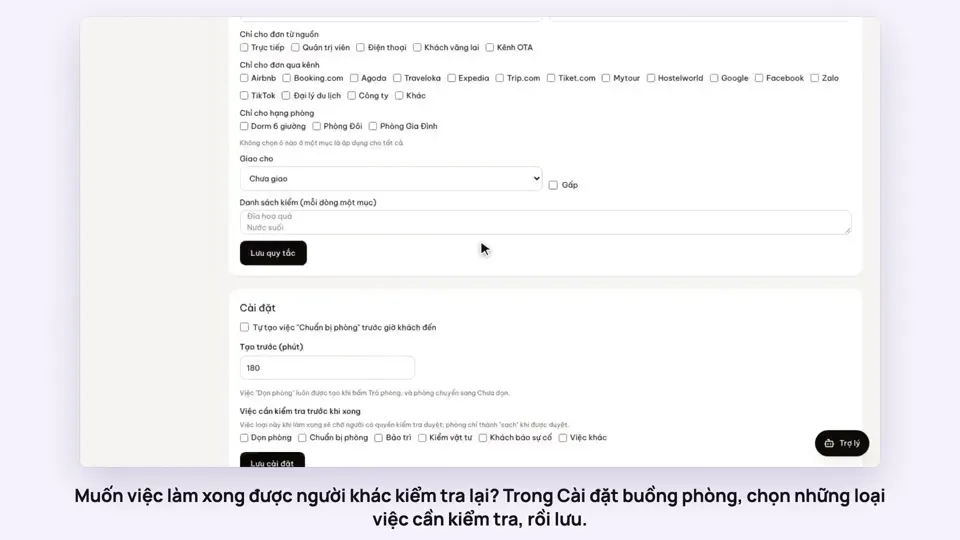 0:42Check housekeeping work: pass it or send it backToday & housekeeping
Questions
Common questions
Do cleaners need an account?
To take and finish tasks, yes, with a Housekeeping role limited to housekeeping. The wall board needs no login.
What if two people tap the same task?
Tasks only move forward. Two taps at the same moment do not count the task twice.
Is there an app to install?
No. Housekeeping runs in the phone’s browser.